.png?width=300&height=58&name=Demo%20Account%20Logos%20(560%20x%20102%20px).png)
Platform: Both (Web Application and Mobile App)
User Type: Org Admin / Admin
Difficulty: Intermediate
Estimated Time: 20 minutes
Last Updated: September 2025
Quick Summary
Configure Rate Items in Dayworkbook to track composite work measured by area, volume, length, or weight. Learn to set up service categories and unit-based rates for work that combines labour, plant, and materials into single measurable outputs.
What You'll Learn
- Understand when to use Rate Items versus individual resource tracking
- Set up service categories for organised composite work classification
- Configure unit-based measurements (sqm, m³, linear metres, tonnes)
- Establish competitive rates for different types of composite work
- Organise Rate Items for efficient daywork sheet creation
- Handle complex work packages with multiple deliverables
Before You Start
Prerequisites:
- Dayworkbook account with Admin permissions (Admin + Billing permissions required for rates)
- Understanding of your typical work packages and how they're measured
- Knowledge of current market rates for composite construction work
You'll Need:
- List of composite work types your organisation typically performs
- Current market rates for unit-based work (per sqm, m³, etc.)
- Understanding of how your work packages combine labour, plant, and materials
- Knowledge of industry-standard measurement methods for your trade
Understanding Rate Items vs Individual Resources
When to Use Rate Items
Composite Work Examples:
- Concrete cutting per linear metre (combines labour, equipment, consumables)
- Flooring installation per square metre (includes materials, labour, preparation)
- Excavation per cubic metre (combines operator, equipment, fuel)
- Drilling per millimetre depth (includes equipment, operator, consumables)
Benefits of Rate Items:
- Simplified pricing for clients
- Competitive market positioning
- Efficient daywork documentation
- Reduced billing complexity
When to Use Individual Resources
Detailed Tracking Examples:
- Time and materials work where transparency is required
- Projects requiring detailed cost breakdowns
- Work where resource usage varies significantly
- Compliance requirements needing individual resource documentation
🎯 Key Point: Rate Items work best for standardised work packages where you can predict resource combinations accurately
Understanding Service Categories
Service Categories help organise related Rate Items for easier selection and professional presentation:
Common Construction Categories
Earthworks & Excavation
- Bulk excavation per cubic metre
- Trenching per linear metre
- Site preparation per square metre
- Backfilling and compaction
Concrete Services
- Concrete cutting per linear metre
- Core drilling per millimetre depth
- Concrete pumping or placement per cubic metre
- Surface preparation per square metre
Specialist Trade Work
- Electrical installations per point/metre
- Plumbing connections per linear metre/fitting
- HVAC ductwork per square metre
- Waterproofing per square metre
Foundation & Structural
- Piling per linear metre
- Formwork per square metre
- Reinforcement supplied or fixed per tonne
- Structural steel per tonne
💡 Pro Tip: Organise categories to match how your clients think about and purchase your services
Step-by-Step Instructions
Step 1: Access Rate Items Configuration
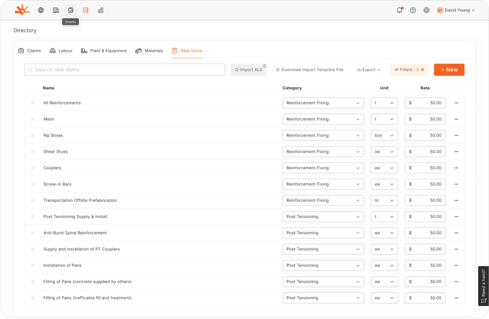
1. Navigate to Directory from the main menu
2. Select the Rate Items tab
3. Review existing categories and rate items (if any)
4. Click "+ New" to add your first rate item
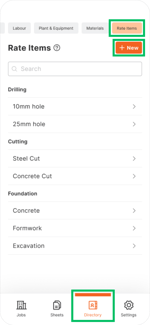
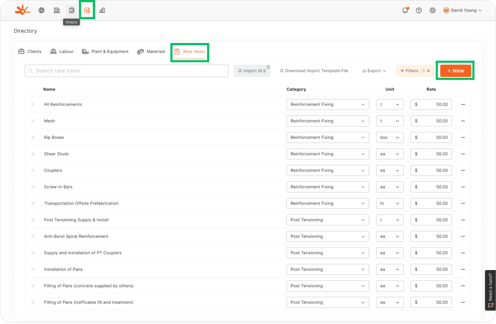
📱 Mobile Note: Rate Items can be added from mobile, but rates are only configurable via web application
Step 2: Create Service Categories
Before adding individual rate items, establish your category structure:
1. In the Rate Items section, look for category management
2. Add service categories that reflect your business offerings:
- Service Category: Clear, professional category name
- Description: Brief explanation of work types included
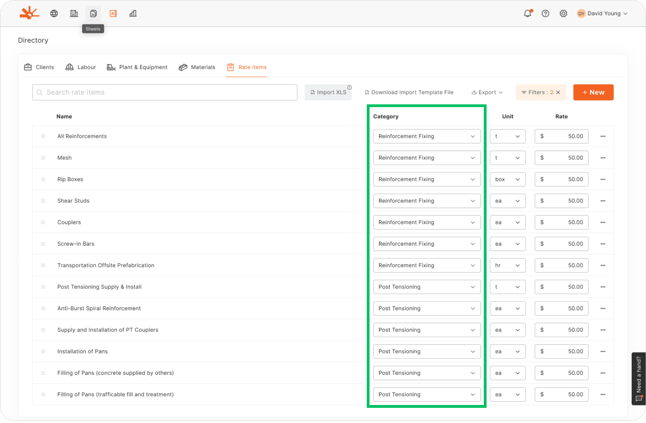
Example Categories:
- Drilling: All drilling and boring services
- Cutting: Concrete and material cutting services
- Excavation: Earthmoving and excavation work
- Foundation: Foundation and structural work
- Finishing: Finishing and surface treatment work
🎯 Key Point: Well-organised categories improve both internal efficiency and client understanding
Step 3: Add Your First Rate Item
Complete the rate item details:
1. Service Category: Select or create appropriate category
2. Service Name: Specific description of the work
- Be clear and measurable
- Include key specifications
- Examples: "50mm Concrete Core", "Bulk Excavation Class 2", "Waterproofing Membrane"
3. Unit: Choose appropriate measurement
- m³ (cubic metres): Volume work like excavation, concrete
- sqm (square metres): Area work like flooring, waterproofing
- L/M (linear metres): Length work like trenching, cutting
- tonne: Weight-based work like steel, reinforcement
- ea (each): Individual items or installations
- mm (millimetre): Smaller tolerance work like the depth of drilling
4. Rate: Set competitive price per unit (web only)
5. Click "Update" to save
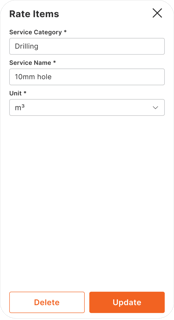
⚠️ Watch Out: Rate item descriptions appear on client documents, so ensure professional presentation
Step 4: Configure Drilling Services Example
Here's a detailed example for drilling services:
Category: Drilling
Service Name              Unit    Rate

10mm Core Drilling        L/M     $15

25mm Core Drilling        L/M     $25

50mm Core Drilling        L/M     $45

Hammer Drilling 6mm       L/M     $8
Key Considerations:
- Diameter affects difficulty and rate
- Include setup costs in per-metre rates
- Consider minimum charges for small jobs
- Factor in equipment wear and consumables
Step 5: Configure Excavation Services Example
Excavation work often varies by material and conditions:
Category: Excavation
Description             Unit    Rate

Bulk Excavation Soil      m³      $25

Bulk Excavation Rock      m³      $65

Trenching Hand Dig        L/M     $35

Trenching Machine         L/M     $20

600mm wide
Pricing Factors:
- Soil conditions and access
- Equipment requirements
- Disposal and cartage
- Site constraints and safety
Step 6: Set Up Area-Based Work
For work measured by coverage:
Category: Finishing
Service Name              Unit    Rate

Waterproofing Membrane    sqm     $35

Concrete Surface Prep     sqm     $15

Epoxy Floor Coating       sqm     $25

Tile Removal              sqm     $20
Rate Considerations:
- Include preparation work in rates
- Factor in material costs and waste
- Consider access and working conditions
- Account for quality requirements
Step 7: Handle Complex Rate Structures
Some Rate Items may need multiple configurations:
Variable Conditions:
- Different rates for different access conditions
- Separate entries for different material grades
- Alternative rates for different project sizes
- Special rates for difficult working conditions
Example - Concrete Cutting:
Service Name                    Unit    Rate

Concrete Cutting Road Saw       L/M     $20

Concrete Cutting Wall Saw       L/M     $35

Concrete Cutting Ring Saw       L/M     $45
💡 Pro Tip: Create separate rate items for significantly different working conditions or quality requirements
Step 8: Import/Export Rate Items
For bulk configuration:
1. Download Template: Get the correct format for Rate Items import
2. Organise Data: Structure rate items by category and service type
3. Import Data: Upload your complete rate items list
4. Export Backup: Download current configuration for backup
5. Validate Results: Review imported rate items for accuracy
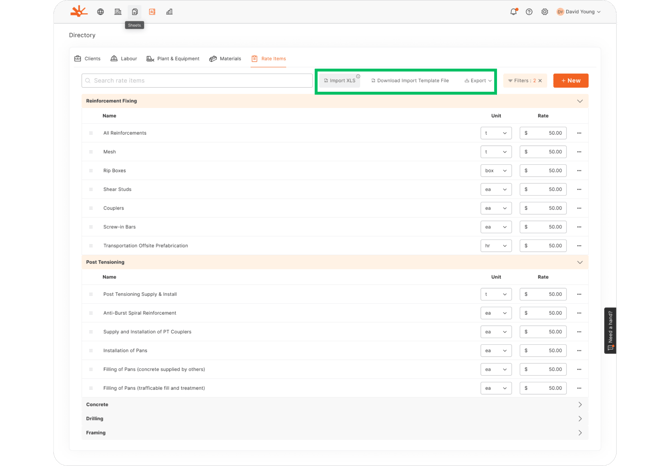
Template Requirements:
- Service Category
- Service Name
- Unit of measurement
- Rate per unit
- Any additional specifications
Step 9: Use Rate Items in Daywork Sheets
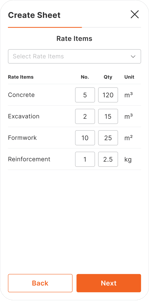
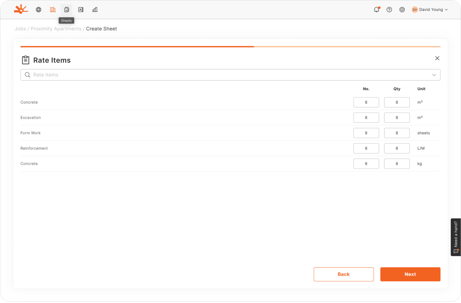
When documenting composite work:
1. Select Rate Items: Choose from configured service categories (e.g. 50mm diameter hole)
2. Enter No.: Choose how many have completed (e.g. 5x holes)
3. Enter Quantity: Amount completed of the specified units (e.g. 100mm deep holes)
Documentation Best Practices:
- Be accurate with quantities measured
- Note any variations from standard conditions
- Include location or section information
- Document quality standards achieved
🎯 Key Point: Rate Items simplify billing while maintaining clear documentation of work completed
Understanding the Results
After configuring your Rate Items, you should have:
- Organised service categories reflecting your business offerings and client expectations
- Comprehensive rate items covering your typical composite work packages
- Competitive pricing structure based on current market rates and cost analysis
- Efficient daywork documentation combining multiple resources into measurable outputs
- Professional client presentation with clear, understandable service descriptions
Your Rate Items setup now supports simplified billing and competitive positioning in the construction market.
Troubleshooting Common Issues
Problem: Can't find appropriate measurement unit for specific work type
Cause: Unusual work type or unfamiliarity with available unit options
Solution: Review all unit options in the dropdown. Consider if work can be measured differently or broken into components. Contact support for guidance on unique measurement requirements.
Problem: Rate items not appearing in daywork sheet creation
Cause: Rate items not saved properly or browser cache issues
Solution: Check Directory > Rate Items to verify items are listed correctly. Refresh browser/app if recently added items don't appear in selection lists.
Problem: Difficulty organising multiple similar rate items
Cause: Poor category structure or unclear service naming
Solution: Review and consolidate service categories. Use consistent naming that clearly differentiates between similar services (size, access, conditions).
Problem: Client questioning rate item pricing or measurement
Cause: Rates not reflecting current market or unclear measurement basis
Solution: Research current market rates for similar services. Ensure measurement basis is clearly explained and matches industry standards.
Problem: Rate items showing incorrect costs on billing reports
Cause: Rates not configured or incorrect rate entry
Solution: Access web application to configure all rate item pricing. Verify rates match your intended pricing structure and include all cost components.
Problem: Too many rate items making selection difficult
Cause: Over-detailed breakdown or duplicate entries
Solution: Consolidate similar rate items where appropriate. Focus on genuinely different work types or conditions that justify separate pricing.
What's Next?
With your Rate Items configured, your next steps are:
- Complete Directory setup - Ensure all resource types are properly configured
- Train teams on composite work measurement - Ensure accurate quantity recording for Rate Items
- Monitor rate competitiveness - Regularly review pricing against market conditions
- Develop measurement standards - Establish consistent methods for measuring different work types
Related Articles
- Understanding Simple vs Advanced Labour Tracking
- Configuring Materials for Accurate Tracking
- Creating Daywork Sheets with Multiple Resource Types
Still Need Help?
If this article didn't solve your issue:
- Check Setting Up Your Directory for general resource configuration guidance
- Review Creating a Daywork Sheet to see how labour tracking appears in practice
- Contact support via website or in-app chat
- Contact us via https://dayworkbook.com/contact/