
Platform: Both (Web Application and Mobile App)
User Type: Standard and above
Difficulty: Beginner
Estimated Time: 10 minutes
Last Updated: September 2026 (revised)
Quick Summary
Create comprehensive daywork sheets to document daily construction activities using the four resource types: Labour, Plant & Equipment, Materials, and Rate Items. This workflow transforms traditional paper daywork books into professional digital documentation.
What You'll Learn
- Enter work details and select the resource sections your sheet needs
- Record labour using Simple (positions) or Advanced (individual workers) methods
- Document plant and equipment usage with quantities and durations
- Track materials consumption with accurate measurements
- Add rate items for composite work measured by area, volume, or other units
- Include photos and supporting documentation
- Choose a Client Rep and approval method to finish the sheet
Before You Start
Prerequisites:
- At least one job created with client assignment
- Directory configured with relevant resources (Labour, Plant & Equipment, Materials, Rate Items)
- Understanding of the work to be documented
You'll Need:
- Work details including date, description, and any client/subcontractor references
- Resource usage information (worker hours, equipment time, material quantities)
- Photos of work progress or completed activities (optional)
- The Client Rep who will approve the sheet, and whether they'll sign in person or by email
Step-by-Step Instructions
Step 1: Start Creating a Daywork Sheet
- Navigate to Jobs and select your project, then click "+ New Sheet" on the Job Details page
- Or, from the main Sheets section, click "+ New Sheet" and select the appropriate Job
- The sheet creation workflow begins
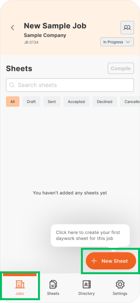
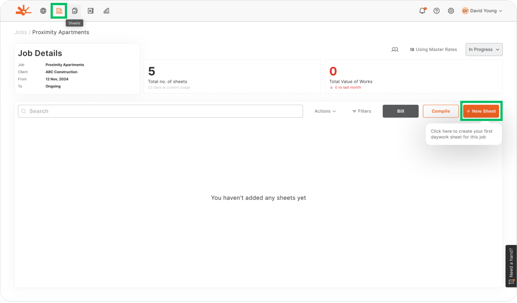
or use "+ New Sheet" from the main Sheets section
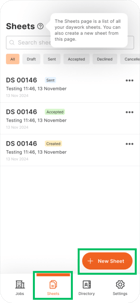
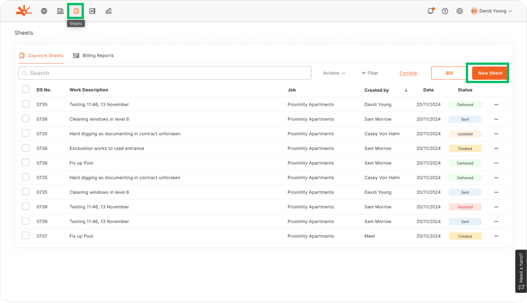
🎯 Key Point: Each daywork sheet represents one day's work and consumes one sheet credit once generated/sent
📱 Mobile Note: Use the floating "+ New" button for quick access to sheet creation
Step 2: Enter Work Details and Select Resource Sections
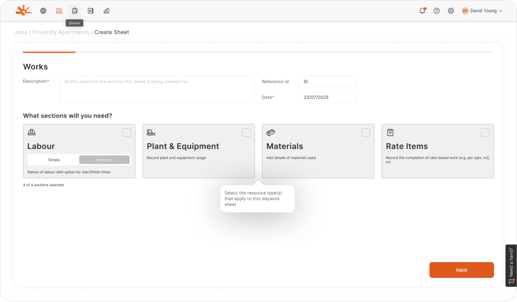
On Web, this is a single screen combining both work details and resource selection:
- Enter a Description of work performed
- Client Ref. and Subcontractor Ref. are optional free-text fields — use these for a site instruction number, variation number, supervisor name, or similar
- Job Ref. is shown but locked — it's inherited from the Job and can't be edited here
- Confirm the Date (defaults to today)
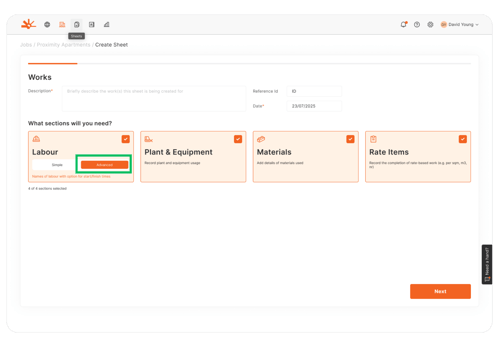
- Under "What sections will you need?", toggle on the resource types that apply: Labour, Plant & Equipment, Materials, Rate Items — a counter shows "X of 4 sections selected"
- On the Labour card, choose Simple or Advanced tracking mode before continuing
- Click "Next"
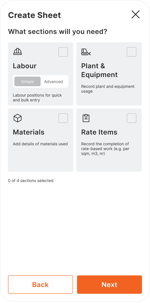
On Mobile, this is split into two screens: Description/Client Reference/Subcontractor Reference/Date of Work first, then a separate "Select the resource types that apply to this sheet" screen with the same four cards and Simple/Advanced toggle.
💡 Pro Tip: You can select multiple resource types — most daywork involves a combination of labour, equipment, and materials.
⚠️ Watch Out: Ensure the date accurately reflects when work was performed, not when the sheet is being created.
Step 3: Record Labour Resources
Your Labour entry table depends on the mode chosen in Step 2.
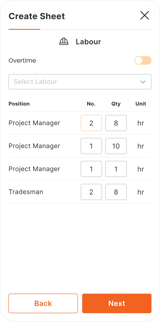
Simple (Position-Based):
- Select worker positions from your Directory
- Enter Standard Hours (and Overtime Hours, if the overtime toggle is on) for each position
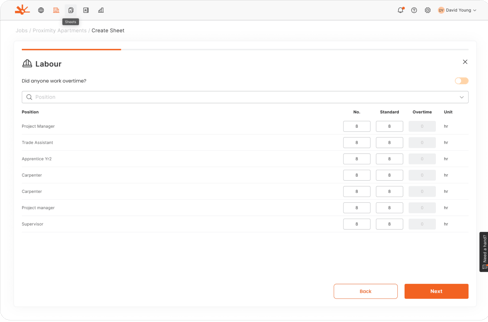
Advanced (Individual Workers):
1. Use "Select Labour" to search and add specific workers (shown with their position, e.g. "Ethan Walsh (Apprentice)")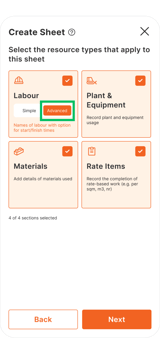
2. Click the clock icon in the column header (Web) or next to a worker's row (Mobile) to set Start, Finish, and Break — Standard hours calculate automatically
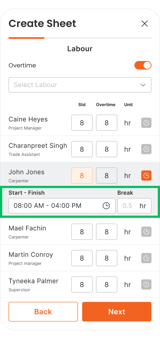
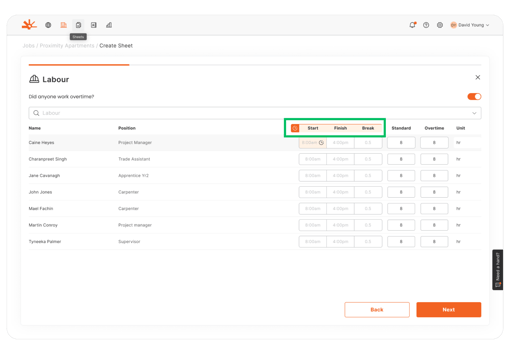
3. Toggle "Did anyone work overtime?" (Web) / "Overtime" (Mobile) to reveal the Overtime column for all rows
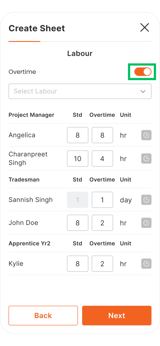
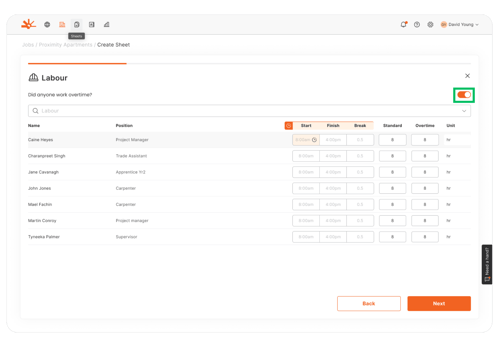
Workers are auto-assigned to their configured position
🎯 Key Point: Simple Labour tracks positions (e.g. "3 Tradesman @ 8 hours"). Advanced Labour tracks individual workers by name, with the option to record start/finish times.
⚠️ Watch Out: Choose either Simple or Advanced for consistency across your organisation — this is set per sheet via the toggle in Step 2, so a mixed approach across sheets is possible but not recommended.
Step 4: Document Plant & Equipment Usage
- In the Plant & Equipment section, use "Select Plant & Equipment" to search and add equipment from your Directory (shown as "Name (Unit)", e.g. "Mini Excavator (3T)")
- Enter the Qty for each item — Unit is inherited from how it's configured in Directory
- Use "+ Add Plant & Equipment" inline if the item you need isn't in Directory yet
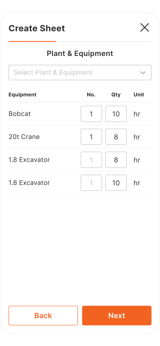
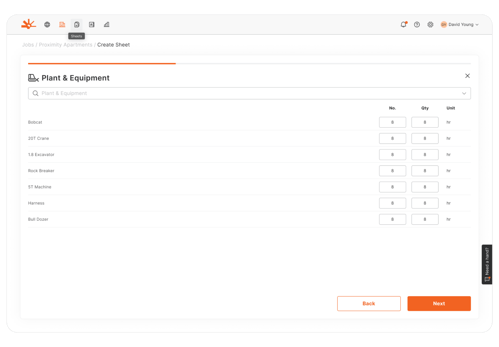
💡 Pro Tip: Be specific about equipment usage times — clients often scrutinise machinery costs closely.
Step 5: Track Materials Consumption
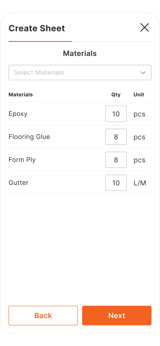
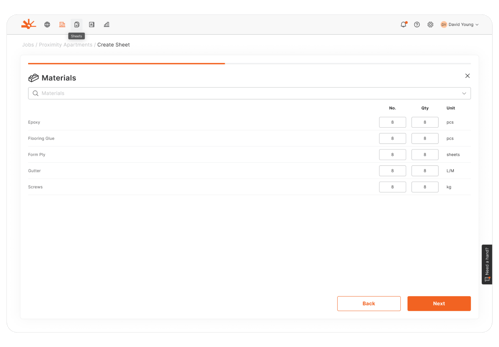
- In the Materials section, use "Select Materials" to search and add materials from your Directory (shown as "Name (Unit)", e.g. "Framing Timber (Linear Metre)")
- Enter the Qty used — the unit shown (Linear Metre, Cubic Metres, Box, Set, Each, Tonne, etc.) is set in Directory
- Use "+ Add Material" inline if needed
🎯 Key Point: Use the measurement units configured in your Directory for consistency.
⚠️ Watch Out: Ensure quantity accuracy — this affects both documentation and any future billing report.
Step 6: Add Rate Items (Composite Work)
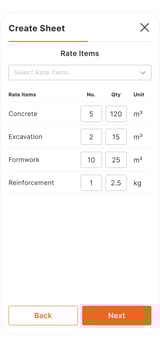
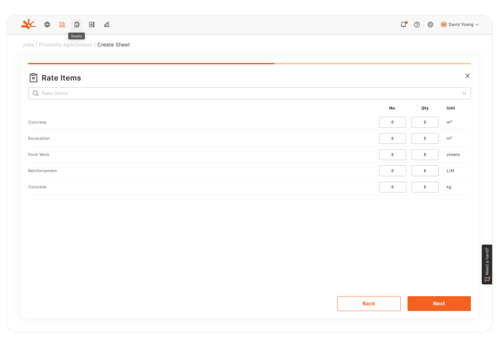
- In the Rate Items section, use "Select Rate Items" to search and add composite work types from your Directory (shown as "Name (Unit)", e.g. "Return Visit (Item)")
- Enter the Qty completed
- Use "+ Add Rate Item" inline if needed
💡 Pro Tip: Rate Items are ideal for work that combines multiple resources into a single measurable output.
Step 7: Add Photos
- Drag and drop, or click "Click to upload", to add progress photos
- Add a caption for each photo describing what it shows
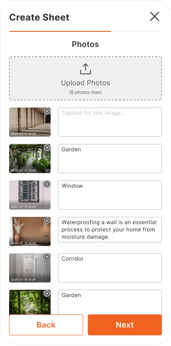
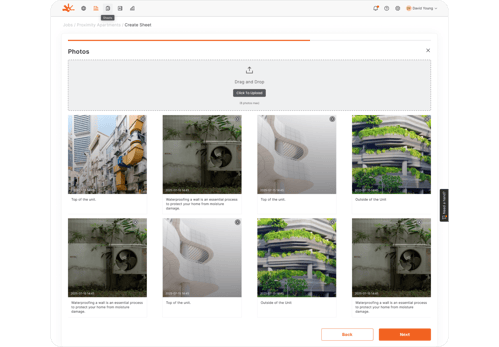
⚠️ Watch Out: You can upload a maximum of 8 photos per sheet.
📱 Mobile Note: The mobile app allows direct camera capture for immediate photo documentation, in addition to uploading existing photos.
Step 8: Choose a Client Rep and Approval Method
- Click "Next" through to the Client Rep step
- Select the Client Representative who will sign the sheet
- Choose the approval/signing method: In-Person or Email
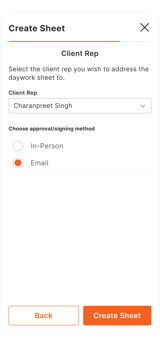
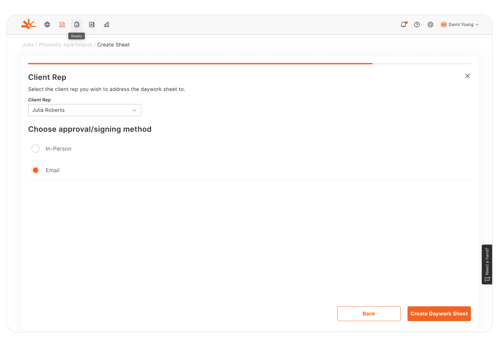
🎯 Key Point: This choice determines what happens next — In-Person hands the device to the Client Rep to sign immediately; Email sends a secure link to the Client Inbox for remote approval. See Getting Daywork Sheets Signed by Client Representatives for the full signing workflow.
Step 9: Review and Finalise the Sheet
- Review the generated preview of your sheet for accuracy — descriptions, quantities, and photos
- You (the preparer) sign first
- Click the final action button to complete the sheet — labelled "Sign" for In-Person approval, or "Send" for Email approval
⚠️ Watch Out: Take time to review thoroughly — changes after client approval require an additional sheet.
Understanding the Results
After creating your daywork sheet, you should have:
- Professional PDF document with company branding and client information
- Comprehensive resource documentation showing all labour, equipment, materials, and rate items selected
- Visual evidence through photos and detailed descriptions
- Sheet status set to "Draft" (before sending) then "Sent", ready for client approval
- Automatic job tracking with updated totals and performance metrics
The sheet is now ready for client review and approval through the signing workflow.
Troubleshooting Common Issues
Problem: Resources not appearing in selection lists
Cause: Resources haven't been added to Directory, or a cache issue
Solution: Navigate to Directory and ensure all required resources are configured. Refresh the page if resources were recently added.
Problem: Can't save labour hours or quantities
Cause: Invalid numbers entered or required fields incomplete
Solution: Ensure all quantity fields contain valid numbers. Check that position or worker selections are made before entering hours.
Problem: Photos won't upload or appear corrupted
Cause: File size too large, unsupported format, or connectivity issues
Solution: Use standard image formats (JPG, PNG). Check internet connection stability.
Problem: Advanced Labour not showing worker names
Cause: Individual workers haven't been added to labour positions in Directory
Solution: Go to Directory > Labour > Advanced, select a position, and click the "+" to add individual worker names.
Problem: Rate Items missing or showing wrong units
Cause: Rate Items not configured properly in Directory
Solution: Navigate to Directory > Rate Items and ensure all composite work types are set up with correct units and categories.
Problem: Sheet won't generate or shows errors
Cause: Required fields incomplete or system connectivity issues
Solution: Review all sections for missing required information (Description, Date, and at least one resource entry). Try refreshing if connectivity issues persist.
What's Next?
With your daywork sheet created, your next steps are:
- Get the sheet signed — present to the Client Representative for approval
- Monitor approval status — track sheet progress through the approval workflow
- Create additional sheets — document ongoing work for the same or different jobs
- Compile sheets for billing — combine multiple approved sheets for client invoicing
Related Articles
- Getting Daywork Sheets Signed by Client Representatives
- Understanding Simple vs Advanced Labour Tracking
- Setting Up Your Directory (Resources Configuration)
- Compiling Sheets for Billing
Still Need Help?
If this article didn't solve your issue:
- Check Setting Up Your Directory if you need to configure resources first
- Review Getting Daywork Sheets Signed for the next step in the workflow
- Contact support via website or in-app chat
- Contact us via https://dayworkbook.com/contact/