.png?width=300&height=58&name=Demo%20Account%20Logos%20(560%20x%20102%20px).png)
Platform: Both (Web Application and Mobile App)
User Type: Org Admin (for purchasing) / All users (for viewing balance)
Difficulty: Beginner
Estimated Time: 10 minutes
Last Updated: September 2025
Quick Summary
Understand Dayworkbook's sheet credit system, manage your account balance, and configure automatic top-up to ensure uninterrupted daywork documentation. Learn how the cost per sheet model works and optimise your credit management for efficient operations.
What You'll Learn
- Understand the sheet credit pricing model and how credits are consumed
- Purchase sheet credits and manage your account balance
- Configure automatic top-up to prevent service interruptions
- Monitor usage history and track credit consumption patterns
- Access payment history and download invoices for accounting
- Optimise credit management for cost-effective operations
Before You Start
Prerequisites:
- Dayworkbook account with Org Admin permissions (for purchasing credits and configuring auto top-up)
- Payment method (credit card) for purchasing additional sheet credits
- Understanding of your organisation's daywork sheet usage patterns
You'll Need:
- Valid payment method for credit purchases
- Authority to make financial decisions for your organisation
- Estimate of monthly/quarterly daywork sheet usage for planning purchases
Understanding the Sheet Credit System
How Sheet Credits Work
Dayworkbook operates on a simple, transparent sheet credit system, sold in a “book” of 50 credits:
Credit Pricing Structure:
- Cost per Sheet: Cost per daywork sheet, specific to your region
- Package or “Book” Size: 50 sheet credits per purchase
- Package or “Book” Price: 50 credits × your region’s cost per sheet
- Credit Consumption: One credit is consumed each time a daywork sheet is created and submitted
What Uses Sheet Credits:
- Creating Daywork Sheets: Each new daywork sheet consumes one credit when created
- Sheet Revisions: Editing and resubmitting sheets does not consume additional credits
- Draft Sheets: Saved draft sheets that haven't been submitted don't consume credits
- Cancelled Sheets: Deleting unsent sheets doesn't consume credits
What Doesn't Use Credits:
- User Access: Adding team members to your organisation
- Directory Management: Setting up clients, labour, equipment, materials, and rate items
- Job Creation: Creating jobs and project records
- Summary Reports: Generating summary reports from existing sheets using “Compile” button
- Data Export: Exporting reports and data
🎯 Key Point: Credits are only consumed when daywork sheets are created, making the system predictable and cost-effective
Value Comparison with Traditional Methods
The digital credit system offers significant advantages over traditional paper daywork books:
Cost Parity with Enhanced Value:
- Similar Price Point: A pack or “book” of 50 sheet credits is similar to the cost of traditional printed branded paper daywork books
- Digital Efficiency: Eliminates printing, storage, and distribution costs
- Reduced Disputes: Digital documentation secures approval integrity, reduces costly billing disputes
- Faster Payments: Professional presentation improves payment timing
- Better Records: Permanent digital storage with search and retrieval capabilities
- No Wastage: All sheets of a book used. No more lost books with empty pages remaining, or writing errors that use more than sheet for a single day.
- No Lock-In Subscription: Only pay as you need. If you’re doing quoted work instead of daywork, there are no costs like platforms that charge monthly subscriptions.
Operational Benefits:
- Track your Work: Have all your sheets been approved? Know the status of all your completed work at a glance and identify any approval risks.
- No Minimum Orders: Purchase credits as you need
- Instant Availability: Credits available immediately after purchase
- Usage Tracking: Monitor consumption patterns for better budget planning
- Professional Presentation: Company branding and professional documentation included
- Business Insight: Finally a solution that can analyse your business operations and provide you with professional reports and summaries
💡 Pro Tip: The credit system eliminates waste from half-used paper books while providing superior documentation capabilities and unparalleled transparency
Step-by-Step Instructions
Step 1: Access Sheet Credits & Payments
Navigate to your credit management interface:
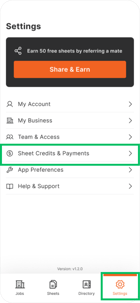
1. For both Web and Mobile: Go to Settings > Sheet Credits & Payments
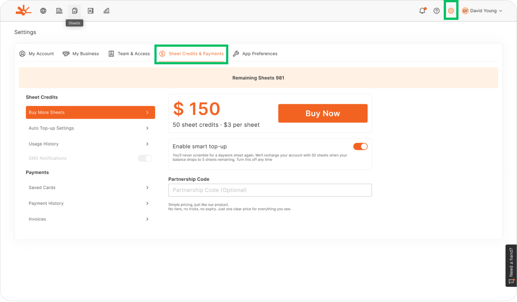
2. Dashboard View (Web): Your remaining credit balance is displayed prominently
Current Balance Display:
- Remaining Sheets: Shows exact number of credits available
- Usage Tracking: Visual indicator of credit consumption
- Low Balance Warning: Alerts when credits are running low
📱 Mobile Note: All credit management features are available on both web and mobile platforms
Step 2: Purchase Additional Sheet Credits
When you need more credits:
Manual Credit Purchase:
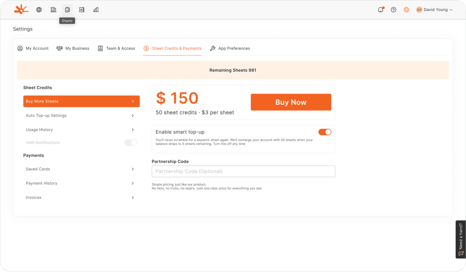
- Click "Buy More Sheets" or "Buy Now" button
- Review Purchase: Confirm 50 sheet credits
- Payment Processing: Complete secure payment with your saved payment method
- Immediate Availability: Credits are added to your account instantly after successful payment

Purchase Confirmation:
- Transaction Receipt: Automatic email confirmation with payment details
- Updated Balance: Account balance reflects new credits immediately
- Invoice Generation: Downloadable invoice available for accounting purposes
⚠️ Watch Out: Ensure you have sufficient authority within your organisation to make credit purchases
Step 3: Configure Automatic Top-up
Set up auto top-up to prevent service interruptions:
Enable Smart Top-up:
1. Navigate to "Auto Top-up Settings" in the Sheet Credits section
2. Toggle "Enable Smart Top-up" to activate automatic purchasing

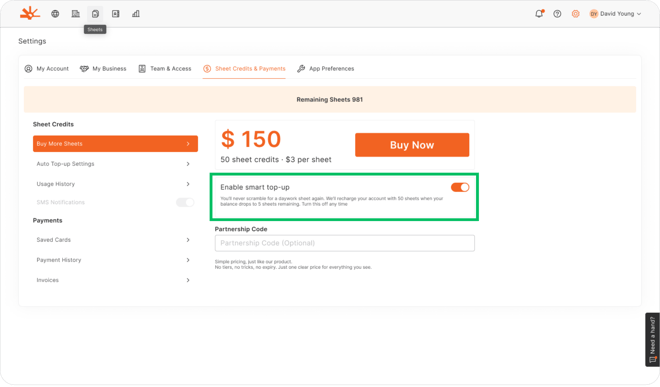
3. Configure Trigger Point: System automatically purchases credits when balance reaches 5 sheets
4. Payment Method: Ensure valid payment method is configured for automatic charges
Auto Top-up Benefits:
- Uninterrupted Service: Never run out of credits during critical project periods, but only pay when you need more
- Automatic Processing: No manual intervention required for credit replenishment
- Budget Predictability: Regular, predictable credit purchases for cash flow planning
- Peace of Mind: Focus on work without worrying about credit management
Auto Top-up Settings:
- Trigger Level: Automatic purchase when 5 or fewer credits remain
- Purchase Amount: Standard 50-credit package ($150 AUD)
- Payment Method: Uses your saved payment method automatically
- Notification: Email confirmation sent for each automatic purchase
🎯 Key Point: Auto top-up ensures continuous service availability while maintaining cost control
Step 4: Access Payment History and Invoices
Manage your payment records:
Payment History Features:
1. Navigate to "Payment History" in the payments section
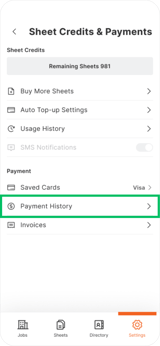
2. Transaction Records: Complete history of all credit purchases
3. Payment Details: Date, amount, and payment method for each transaction
4. Invoice Download: Access downloadable invoices for accounting purposes

Understanding the Results
After setting up effective credit management, you should have:
- Uninterrupted service availability through appropriate credit balances and auto top-up configuration
- Cost-effective operations with predictable credit consumption and bulk purchasing
- Complete financial records with downloadable invoices and payment history
- Usage insights enabling better project planning and budget management
- Professional documentation capabilities without traditional paper book limitations
Your credit management approach now supports both cost control and operational excellence.
Troubleshooting Common Issues
Problem: Auto top-up not working or failing to purchase credits
Cause: Expired payment method, insufficient funds, or payment processing issues
Solution: Check Settings > Saved Cards to verify payment method is current. Update card details if expired. Contact your bank if payments are being declined. Disable and re-enable auto top-up if problems persist.
Problem: Credits consumed but daywork sheet not created successfully
Cause: Technical issues during sheet creation or network connectivity problems
Solution: Check your sheets list to verify if sheet was created. Contact support if credits were consumed without successful sheet creation. Credits may be refunded for technical failures.
Problem: Cannot access payment history or download invoices
Cause: Browser issues, network connectivity, or account permission problems
Solution: Ensure you have Org Admin permissions to access payment features. Try refreshing the browser or clearing cache. Contact support if invoice downloads consistently fail.
Problem: Unexpected credit consumption or usage discrepancies
Cause: Multiple users creating sheets or misunderstanding of what consumes credits
Solution: Review Usage History to see detailed credit consumption. Check team member activity in Team & Access settings. Remember that only sheet creation consumes credits, not editing or viewing existing sheets.
Problem: Payment processing failures or declined transactions
Cause: Banking restrictions, international payment issues, or card validation problems
Solution: Verify payment method details are correct. Contact your bank to ensure international payments are enabled. Try alternative payment method if available. Contact support for payment processing assistance.
Problem: Unable to set up auto top-up configuration
Cause: Missing payment method or insufficient permissions
Solution: Ensure valid payment method is saved in Settings > Saved Cards. Verify you have Org Admin permissions. Check that your organisation's policies allow automatic recurring payments.
What's Next?
With effective credit management established, your next steps are:
- Usage optimisation - Monitor consumption patterns and train team on efficient sheet creation
- Budget integration - Incorporate credit costs into project budgeting and client pricing
- Process standardisation - Establish consistent sheet creation practices across your organisation
- Financial planning - Use usage history for accurate budget forecasting and cash flow planning
Related Articles
- User Access Management and Permissions - Understanding team member roles and permissions
- Creating a Daywork Sheet - Understanding when credits are consumed in the sheet creation process
- Compiling Sheets for Billing - Maximising value from your sheet credits through professional billing
Still Need Help?
If this article didn't solve your issue:
- Check "User Access Management and Permissions" for guidance on team member payment permissions
- Review "Creating a Daywork Sheet" to understand when credits are consumed
- Contact support via website or in-app chat
- Contact us via https://dayworkbook.com/contact/