.png?width=300&height=58&name=Demo%20Account%20Logos%20(560%20x%20102%20px).png)
Platform: Both (Web Application and Mobile App)
User Type: Standard and above
Difficulty: Beginner
Estimated Time: 10 minutes
Last Updated: September 2025
Quick Summary
Learn the technical differences between Dayworkbook's two sheet approval methods - email approval and in-person signing - to choose the optimal approach for each situation. Understand platform-specific features, limitations, and best practices for each approval method.
What You'll Learn
- Compare email approval and in-person signing features within Dayworkbook platform
- Understand technical requirements and limitations for each approval method
- Configure and execute both approval methods using platform interface
- Troubleshoot common issues with each approval approach
- Choose appropriate approval method based on platform capabilities and client needs
Before You Start
Prerequisites:
- Client Representatives configured in Directory with valid contact information
- Understanding of daywork sheet creation process
- Mobile device access for in-person approval functionality
You'll Need:
- Email addresses for Client Representatives (for email approval)
- Mobile device with camera and internet access (for in-person signing)
- Understanding of client preferences and technical capabilities
Understanding Platform Approval Methods
Email Approval System
Dayworkbook's email approval system provides secure remote approval capabilities:
How Email Approval Works:
- Automatic Email Generation: Platform creates professional email with secure approval link
- Secure Client Interface: Client Representatives access review interface without needing Dayworkbook account
- Document Review: Complete daywork sheet displayed with photos and resource details
- Digital Approval Process: Simple approve/reject interface with optional comments
- Automatic Status Update: Platform immediately updates approval status upon client action
Email Approval Features:
- No Client Account Required: Client Reps approve through secure links without platform registration
- Complete Documentation Access: Full daywork sheet with photos available for review
- Audit Trail: Automatic timestamp and approval record creation
- Mobile Responsive: Client approval interface works on all devices
- Secure Access: Time-limited secure links prevent unauthorised access
In-Person Signing System
Dayworkbook's in-person signing uses direct digital signature capture:
How In-Person Signing Works:
- Local Signature Interface: Mobile device presents signature capture screen
- Direct Client Interaction: Client Representative signs directly on your device
- Immediate Approval: Instant approval status update with signature capture
- Local Processing: No internet required during signature capture (sync occurs afterward)
- Signature Storage: Digital signature integrated into daywork sheet record
In-Person Signing Features:
- Immediate Results: Instant approval without waiting for email response
- Offline Capability: Signature capture works without internet connection
- Direct Control: You manage the approval process timing
- Personal Interaction: Face-to-face approval allows immediate clarification
- Signature Integration: Digital signature becomes part of permanent record
🎯 Key Point: Both methods create identical audit trails and integrate equally with billing reports
Step-by-Step Instructions
Step 1: Configure Client Representatives for Both Methods
Set up Client Reps in Directory to support both approval approaches:
1. Navigate to Directory > Clients
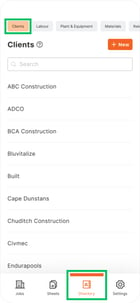
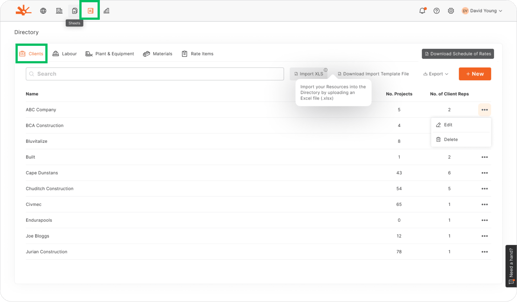
2. Select client and access Client Reps section
3. For each representative, ensure:
- Name: Accurate for signature records
- Email: Valid and accessible (essential for email approval)
- Phone: Optional but helpful for coordination
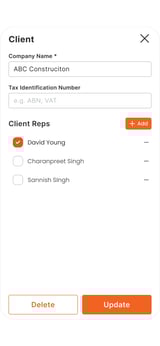
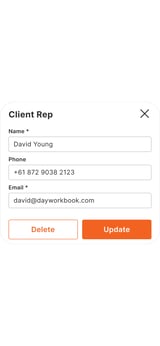
⚠️ Watch Out: Email approval requires valid email addresses; in-person signing can work with name only
Step 2: Execute Email Approval Process
Use Dayworkbook's email approval system:
Initiating Email Approval:
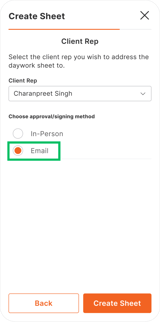
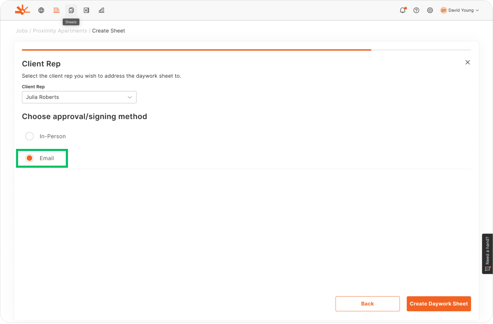
1. In daywork sheet approval section, choose appropriate Client Representative from dropdown
2. Select "Email"
3. Add optional message for context (appears in approval email)
4.Click "Send" to dispatch approval email
What Client Receives:
- Professional email with company branding
- Secure link to approval interface
- Complete daywork sheet with photos and descriptions
- Simple approve/reject buttons with optional comment field (mandatory if rejecting)
Platform Tracking:
- Sheet status immediately changes to "Sent"
- Email delivery confirmation in platform
- Automatic status update when client responds
- Complete approval record with timestamp
Step 3: Execute In-Person Signing Process
Use Dayworkbook's direct signature capture:
Initiating In-Person Signing:
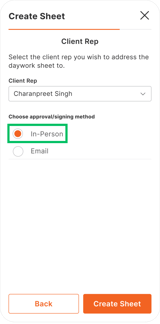
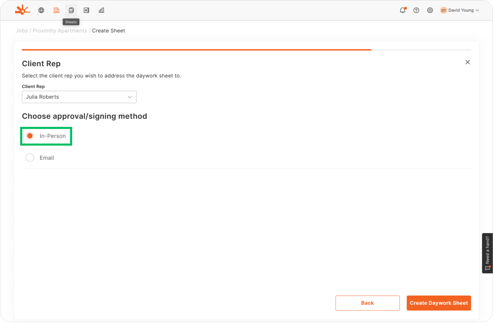
- In daywork sheet approval section, Choose Client Representative who will sign
- Select "In-Person"
- Present mobile device to client
- Guide client through signature interface
Signature Capture Process:
- Review Screen: Client sees complete daywork sheet on device
- Signature Interface: Platform presents signature capture area
- Digital Signing: Client signs directly on device screen
- Confirmation: Platform confirms signature capture and approval
- Immediate Completion: Sheet status instantly updates to "Approved"
📱 Mobile Note: Signature capture optimised for mobile device touch interfaces
Step 4: Monitor Approval Status for Both Methods
Track approval progress using platform status indicators:
Email Approval Monitoring:
- "Sent" Status: Email dispatched, awaiting client response
- Email Delivery Tracking: Confirmation of email receipt
- Response Notifications: Automatic alerts when client responds
- Approval Details: Complete record of client response and timing
In-Person Approval Tracking:
- Immediate Status: Instant update to "Approved" upon signature
- Signature Record: Digital signature stored with approval
- Sync Confirmation: Automatic sync when device reconnects to internet
- Approval Timestamp: Exact time of signature capture recorded
Choosing the Right Method
Use Email Approval When:
Technical Factors:
- Client Representative has reliable email access
- Remote approval fits project workflow
- Client prefers digital record-keeping
- Multiple representatives need to review before approval
Platform Advantages:
- Client can review at their convenience
- Complete documentation package delivered automatically
- No scheduling required for approval meeting
- Works across all client device types
Use In-Person Signing When:
Technical Factors:
- Immediate approval required for project continuity
- Client Representatives prefer face-to-face interaction
- Email access is unreliable or not preferred
- Complex work requiring explanation during approval
Platform Advantages:
- Instant approval without waiting period
- Works without client email dependency
- Immediate clarification if questions arise
- No risk of email delivery issues
🎯 Key Point: Both methods create identical platform records and billing integration
Understanding Platform Results
After implementing both approval methods effectively, you should have:
- Flexible approval options matching client technical preferences and project requirements
- Consistent approval records regardless of method used
- Optimal workflow efficiency through appropriate method selection
- Complete audit trails automatically maintained by platform for both approaches
- Seamless billing integration with all approved sheets available for billing reports
Your approval process now leverages both platform approval methods for maximum flexibility.
Troubleshooting Platform-Specific Issues
Email Approval Problems:
Problem: Email approval links not working for clients
Cause: Email client security settings or link expiration
Solution: Ask client to copy link to browser instead of clicking. Verify link hasn't expired. Resend approval if needed.
Problem: Client cannot access approval interface
Cause: Browser compatibility or security restrictions
Solution: Recommend modern browser (Chrome, Firefox, Safari, Edge). Ask client to disable ad blockers temporarily. Try different device if available.
Problem: Email approvals going to client spam folders
Cause: Email filtering systems blocking platform emails
Solution: Ask client to whitelist dayworkbook.com domain. Provide alternative Client Rep email if primary is filtered.
In-Person Signing Problems:
Problem: Signature capture not working on mobile device
Cause: Device compatibility or touch screen issues
Solution: Ensure device screen is clean and responsive. Try different orientation. Update mobile app to latest version.
Problem: Signature appears but approval doesn't register
Cause: Sync issues or internet connectivity problems
Solution: Check internet connection for sync. Complete signature process again if needed. Contact support if signature repeatedly fails to register.
Problem: Client uncomfortable with digital signature process
Cause: Unfamiliarity with touch screen signing
Solution: Demonstrate signature process first. Allow client to practice signature capture. Ensure comfortable device positioning and clear instructions.
What's Next?
With both approval methods configured and understood, your next steps are:
- Method optimisation - Track success rates of each method to optimize client-specific approaches
- Client preference documentation - Record preferred methods in client notes for consistent application
- Team training - Ensure all team members understand when and how to use each method effectively
- Platform integration - Leverage approved sheets in billing reports regardless of approval method used
Related Articles
- Client Approval Process and Workflows - Overall platform approval system configuration
- Getting Daywork Sheets Signed - Detailed technical procedures for both approval methods
- Managing Client Relationships and Representatives - Directory configuration for optimal approval workflows
- Billing Reports - Using approved sheets in platform billing features
Still Need Help?
If this article didn't solve your issue:
- Check Client Approval Process and Workflows for broader approval strategy guidance
- Review Getting Daywork Sheets Signed for technical signing workflow details
- Contact support via website or in-app chat
- Contact us via https://dayworkbook.com/contact/