.png?width=300&height=58&name=Demo%20Account%20Logos%20(560%20x%20102%20px).png)
Platform: Both (Web Application and Mobile App)
User Type: Standard and above
Difficulty: Intermediate
Estimated Time: 15 minutes
Last Updated: September 2025
Quick Summary
Master Dayworkbook's client approval features and workflow configurations to optimise daywork sheet approval processes. Learn how to use platform-specific approval settings, manage approval methods, and track approval status through Dayworkbook's built-in workflow tools.
What You'll Learn
- Configure client approval settings within Dayworkbook for optimal workflow efficiency
- Use platform approval features including email and in-person approval methods
- Track and manage approval status using Dayworkbook's workflow tools
- Set up client representatives and approval hierarchies in the Directory
- Understand platform approval notifications and status tracking
- Troubleshoot common approval workflow issues within the platform
Before You Start
Prerequisites:
- Clients and Client Representatives configured in Directory > Clients
- Understanding of daywork sheet creation and submission process
- Knowledge of your client approval requirements and preferences
You'll Need:
- Access to Directory settings for client representative management
- Understanding of client approval authority and hierarchy
- Mobile device for in-person approvals (if using this method)
Understanding Dayworkbook's Approval System
Platform Approval Features
Dayworkbook provides integrated approval workflow features designed specifically for daywork documentation:
Approval Methods Available:
- Email Approval: Clients receive secure email links to review and approve daywork sheets remotely
- In-Person Approval: Direct digital signature capture using mobile device interface
- Approval Status Tracking: Real-time status updates and notification system
- Client Representative Management: Directory-based contact management for approval workflows
Platform Benefits:
- Automated Workflows: System automatically handles approval distribution and tracking
- Audit Trail: Complete approval history with timestamps and Client Representative details
- Integrated Documentation: Approved sheets can quickly be compiled within Billing Reports
- Multi-Representative Support: Flexible client representative assignment for coverage
Step-by-Step Instructions
Step 1: Configure Client Representatives in Directory
Set up client approval contacts through Dayworkbook's Directory system:
1. Navigate to Directory > Clients
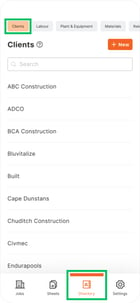
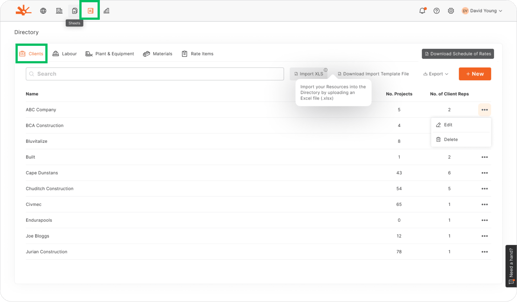
2. Select the relevant client. Look for three dots and click "Edit" (Web only)
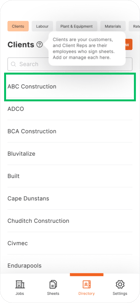
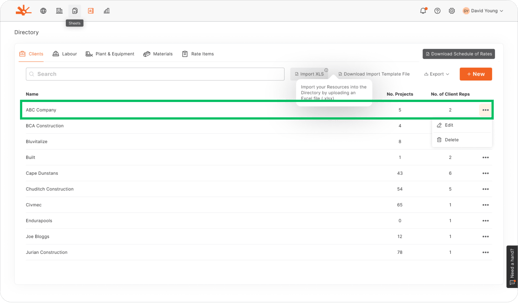
3. In the Client Reps section, click "+ Add"
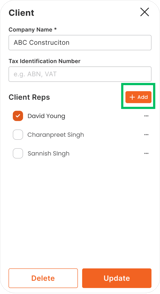
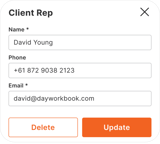
4. Enter representative details:
- Name: As it should appear on approval records
- Email: Required for email approval workflows
- Phone: Optional, for additional contact methods
5. Click "Update" to save
💡 Pro Tip: Add multiple Client Reps per client to ensure approval coverage when primary contacts are unavailable
Step 2: Select Approval Method in Daywork Sheets
When creating or submitting daywork sheets, choose the appropriate approval method:
For Email Approval:
1. In the daywork sheet, navigate to approval section
2. Choose the appropriate Client Representative from dropdown
3. Select "Email" as approval method
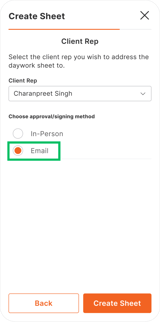
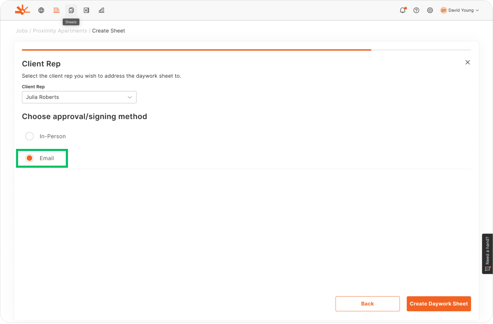
4. Click "Send" to initiate email approval workflow
For In-Person Approval:
1. Choose the Client Representative who will sign
2. Select "In-Person" as approval method
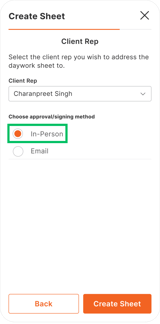
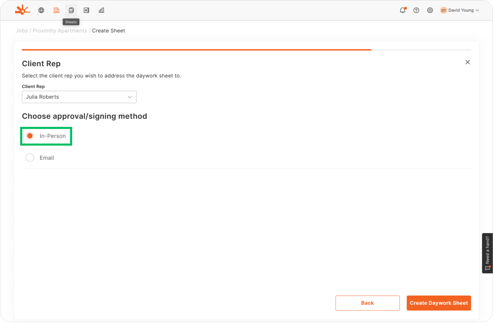
3. Present mobile device to client representative
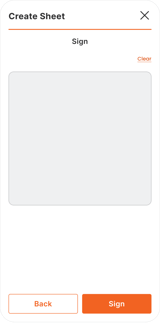
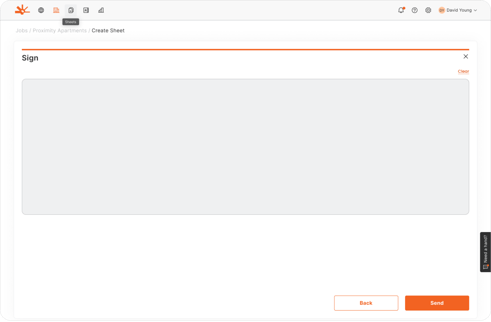
4. Guide them through the digital signature interface
5. Complete approval process with signature capture
⚠️ Watch Out: Once sent, one sheet credit is consumed regardless of approval outcome
Step 3: Track Approval Status Using Platform Tools
Monitor approval progress through Dayworkbook's status tracking features:
Approval Status Indicators:
- Draft: Sheet created but not submitted for approval
- Sent: Sheet submitted and awaiting client review
- Approved: Client representative has signed and approved
- Rejected: Client representative has declined approval with comments
- Cancelled: Sheet withdrawn before approval
Status Tracking Locations:
- Dashboard: Summary of sheets pending approval
- Jobs View: Approval status for all sheets within specific jobs
- Sheets List: Overall approval status across all projects
📱 Mobile Note: Push notifications alert you to approval status changes when enabled
Step 4: Manage Client Representative Access
Use Dayworkbook's client management features for optimal approval workflows:
Directory Management:
- Regularly update Client Representative contact information
- Verify email addresses are current and accessible
- Test approval workflows with new Client Representatives
- Remove inactive representatives to maintain clean contact lists
Job-Level Representative Assignment:
- When creating jobs, select appropriate Client Reps for the specific project
- Assign multiple representatives for project coverage
- Ensure selected representatives have approval authority for the work scope
🎯 Key Point: Dayworkbook allows flexible Client Rep assignment at both client and job levels
Step 5: Use Platform Notification Features
Leverage Dayworkbook's notification system for approval management:
Email Notifications:
- Automatic notifications when sheets are approved or rejected
- Summary emails showing approval activity across projects
- Reminders to Client Reps for pending approvals (when enabled in Settings)
Platform Alerts:
- Dashboard alerts for sheets requiring attention
- Status change notifications within the application
- Mobile app push notifications for immediate updates
Step 6: Handle Approval Issues Using Platform Tools
Address approval workflow problems using Dayworkbook's built-in features:
For Rejected Sheets:
- Review rejection reasons in the platform interface
- Edit and resubmit (note this does not consume another sheet credit)
For Delayed Approvals:
- Check approval status in platform dashboard
- Verify Client Representative contact information in Directory
- Use platform's reminder email features if needed
- Contact the Client Representative directly using the entered email address or phone number
💡 Pro Tip: Platform tracks all approval attempts and provides complete audit trail
Understanding Platform Results
After optimising your approval workflow configuration, you should have:
- Streamlined approval processes configured through Dayworkbook's Directory and workflow settings
- Efficient status tracking using platform dashboard and notification features
- Reduced approval delays through proper Client Representative configuration
- Complete approval audit trails automatically maintained by the platform
- Integrated billing documentation with approved sheets automatically included in reports
Your approval workflow now leverages Dayworkbook's full platform capabilities for maximum efficiency.
Troubleshooting Platform Issues
Problem: Email approvals not reaching Client Representatives
Cause: Incorrect email addresses or spam filtering
Solution: Verify email addresses in Directory > Clients. Ask clients to whitelist dayworkbook.com domain. Test with alternative Client Rep if available.
Problem: In-person approval interface not working properly
Cause: Device compatibility or browser issues
Solution: Ensure device meets platform requirements. Try different browser or clear cache. Update mobile app to latest version.
Problem: Approval status not updating in platform
Cause: Sync issues or network connectivity problems
Solution: Refresh platform interface. Check internet connection. Contact support if status remains incorrect after 30 minutes.
Problem: Unable to select Client Representatives in daywork sheets
Cause: Client Representatives not properly configured in Directory
Solution: Navigate to Directory > Clients and verify Client Rep setup. Ensure email addresses are entered and contacts are active.
Problem: Multiple approval attempts consuming excessive sheet credits
Cause: Misunderstanding of platform credit system
Solution: Each submission consumes one credit regardless of outcome. Use edit/resubmit features for corrections rather than creating new submissions.
What's Next?
With platform approval workflows optimised, your next steps are:
- Monitor platform metrics - Use dashboard features to track approval efficiency
- Maintain Directory accuracy - Regularly update Client Representative information
- Optimize approval methods - Use platform data to determine most effective approval approaches for each client
- Integrate with billing - Leverage approved sheets in platform billing report generation
Related Articles
- Email Approval vs In-Person Signing - Detailed comparison of platform approval methods
- Managing Client Relationships and Representatives - Directory configuration and maintenance
- Getting Daywork Sheets Signed - Technical process for platform approval workflows
- Billing Reports - Using approved sheets in platform billing features
Still Need Help?
If this article didn't solve your issue:
- Check Getting Daywork Sheets Signed for detailed signing workflow guidance
- Review Email Approval vs In-Person Signing for method-specific best practices
- Contact support via website or in-app chat
- Contact us via https://dayworkbook.com/contact/