.png?width=300&height=58&name=Demo%20Account%20Logos%20(560%20x%20102%20px).png)
Platform: Web Application Only
User Type: Admin+Billing / Org Admin
Difficulty: Intermediate
Estimated Time: 10 minutes
Last Updated: September 2025
Quick Summary
🚀 PREMIUM FEATURE: Generate comprehensive, professional billing reports that automatically calculate costs using your Directory rates and create invoice-ready documents in minutes instead of hours. This game-changing feature transforms multiple daywork sheets into polished client reports with full cost breakdowns, supporting documentation, and future accounting software integration.
What You'll Learn
- Create professional billing reports with automatic cost calculations that save hours of manual work
- Include comprehensive supporting documentation for client transparency
- Understand the premium value of automated billing workflows
- Prepare for future accounting software integration (Xero, MYOB, QuickBooks)
🎯 Why Billing Reports are a Game-Changer
Time Savings: What used to take hours of manual calculation and document preparation now takes seconds
Professional Presentation: Automatically formatted, branded documents that impress clients
Accuracy: Eliminate calculation errors with automated rate applications
Transparency: Include all supporting documentation for complete billing transparency
Integration Ready: Future-proofed for direct accounting software integration
Competitive Advantage: Stand out from competitors with professional, comprehensive billing that make your clients’ lives easier
Before You Start
Prerequisites:
- Admin+Billing or Org Admin user permissions
- Multiple approved daywork sheets from the same job/client
- Resource rates configured in the Directory for automatic cost calculations
- Access to the web application (billing features are web-exclusive)
You'll Need:
- At least two approved daywork sheet ready for billing
- Complete Directory rates setup for accurate cost calculations
- Clear understanding of billing period and client requirements
- Professional billing standards and client communication preferences
Step-by-Step Instructions
Step 1: Access Premium Billing Features
1. Navigate to Jobs section from the main menu
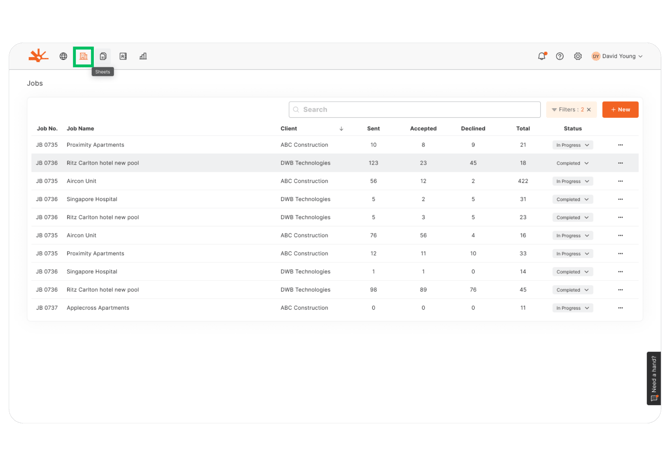
2. Select the Job containing approved sheets for billing
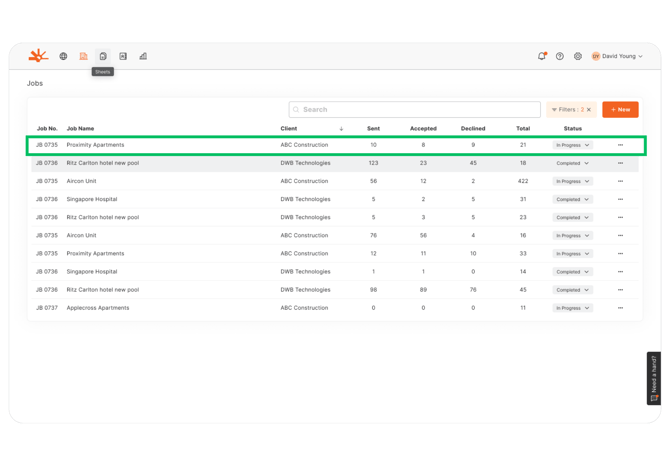
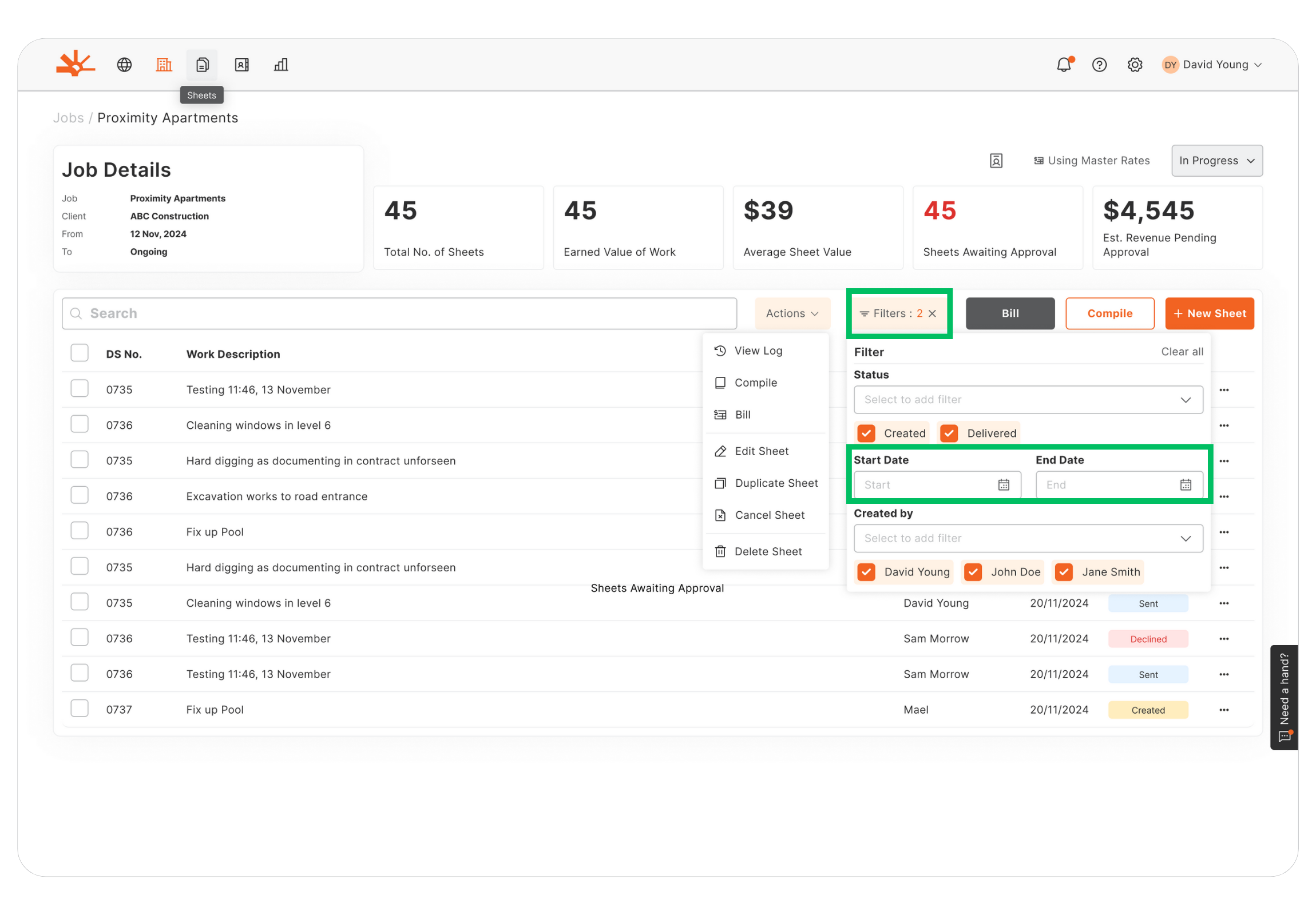
3. In the Job Details page, search for sheets using date or other filters and select multiple sheets
4. Locate and click the "Bill" button (distinct from "Compile")
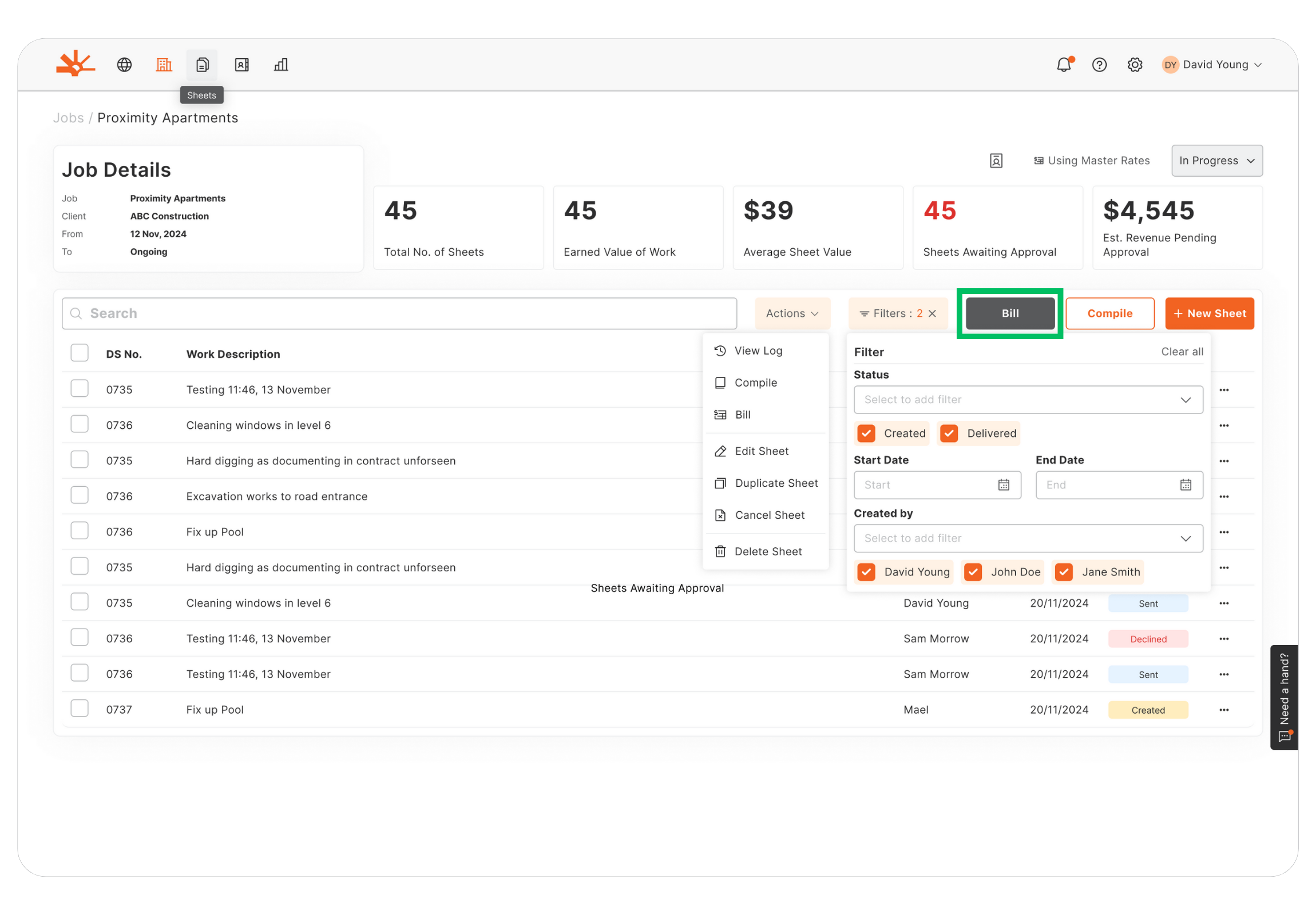
🎯 Key Point: Billing features are exclusively available on the web application for comprehensive document generation and rate calculations
💡 Pro Tip: Create reports by logical billing periods (monthly, milestone-based, or project phases) for clearer client invoicing and future tracking
⚠️ Watch Out: Only Admin+Billing and Org Admin users can access these premium billing features
Step 2: Generate Your Professional Billing Report
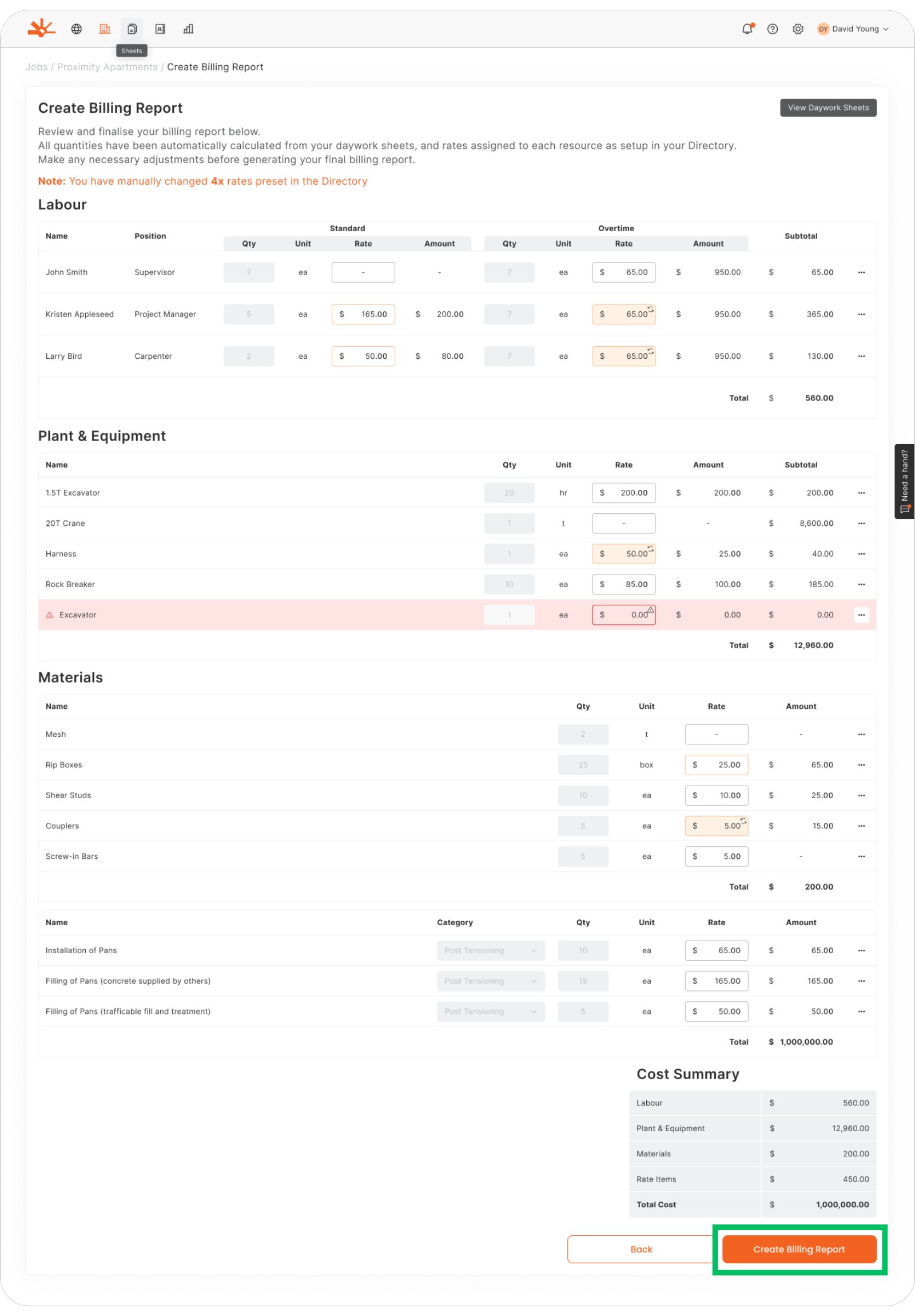
1. After clicking “Bill”, Dayworkbook will automatically:
- Calculate resource line item quantity totals
- Apply Directory rates to all quantities
- Calculates subtotals by resource type
- Generates comprehensive cost summaries
- Includes all supporting documentation
2. Review all line items to ensure rates are correct
3. Once correct, click "Create Billing Report" to generate the PDF Billing Report
4. A comprehensive billing document is generated featuring:
- Professional branding with company and client information
- Detailed cost calculations using your configured Directory rates
- Resource summaries with individual line items and totals
- Supporting documentation including hyperlinked/attached signed sheets
- Invoice-ready format suitable for immediate client distribution with invoice or payment claim
⚠️ Watch Out: Report generation may take a few moments due to comprehensive calculations and document formatting
Step 5: Review Your Professional Billing Document
Your comprehensive billing report includes:
Professional Header Section:
- Company branding and contact information
- Client details and billing address
- Billing period, report date, and job reference
- Professional reference numbers for tracking
Detailed Cost Breakdown Tables:
- Labour Costs: Hours by position with rates, standard/overtime calculations, and totals
- Plant & Equipment: Equipment usage with hourly/daily rates and cost totals
- Materials: Material quantities with unit costs and extended totals
- Rate Items: Composite services with measurement units and calculated costs
Professional Summary:
- Subtotals by resource category
- Overall project total for the billing period
- Clear, professional cost presentation
Complete Supporting Documentation:
- Original signed daywork sheets with full photo documentation
- Client Rep signatures and approval dates
- Comprehensive work descriptions and verification
🎯 Key Point: Every billing report is a complete, professional package that eliminates client questions and disputes
Step 6: Distribute and Manage Your Billing
Advanced Distribution Options:
📧 Direct Client Communication:
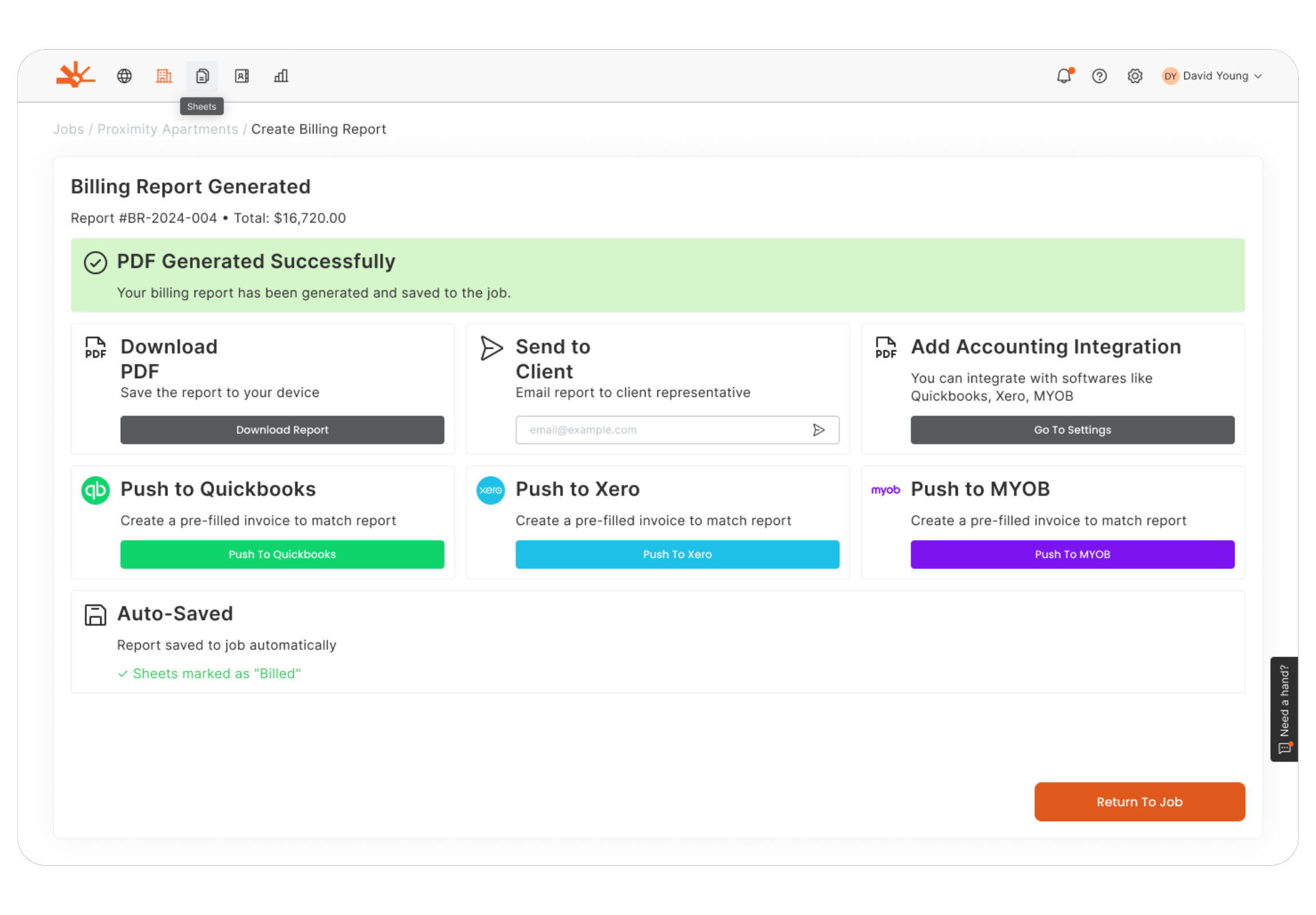
- Send directly to selected Client Reps from within the platform
- Professional email formatting with company branding
- Automatic tracking of sent reports
💾 Download and Archive:
- PDF download for your accounting systems
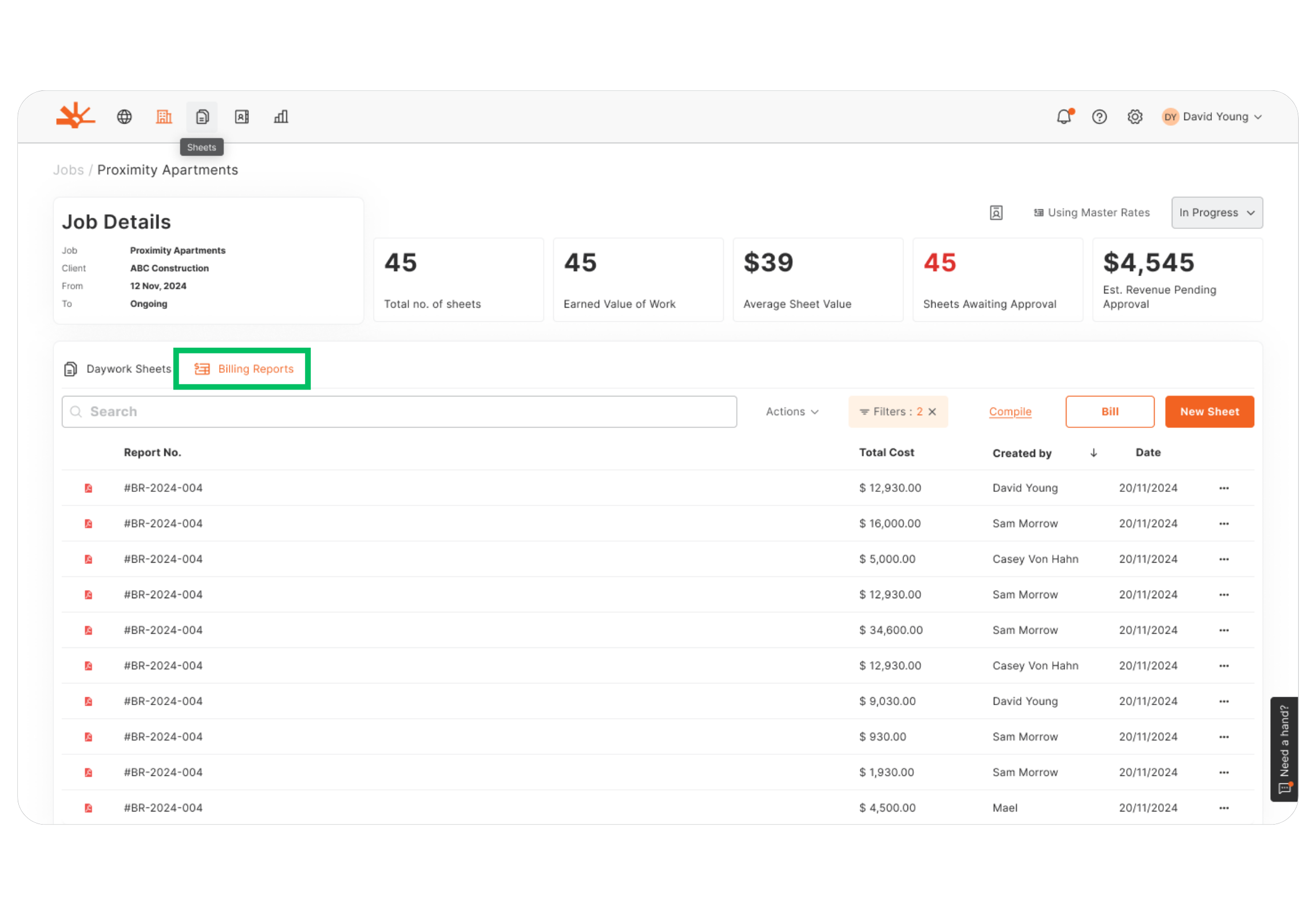
- Permanent storage in Job Details for future reference
- Version control and billing history tracking
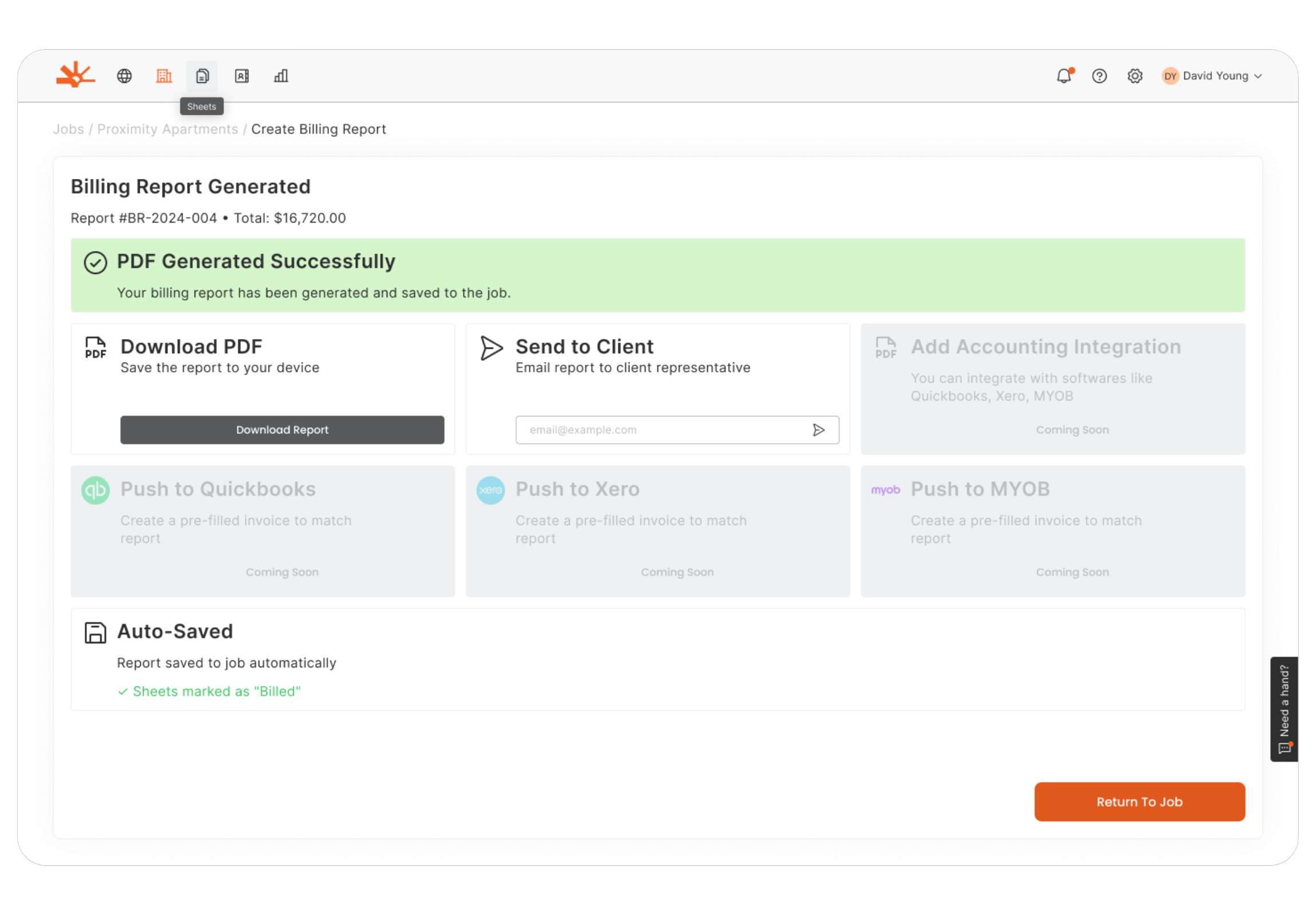
🔄 Future Accounting Integration:
- Xero Integration: Invoice creation and Billing Report attachment in Xero (coming soon)
- MYOB Integration: Invoice creation and Billing Report attachment in MYOB (coming soon)
- QuickBooks Integration: Invoice creation and Billing Report attachment in Quickbooks (coming soon)
- Custom Integration: API access for bespoke accounting workflows
💡 Pro Tip: The professional presentation and comprehensive documentation of Billing Reports typically result in faster payment cycles and fewer billing disputes
Step 7: Track and Manage Billing Performance
Advanced Billing Management:
- Report Storage: All billing reports permanently saved in Job Details
- Status Tracking: Monitor report delivery and client responses
- Payment Management: Track payment receipts and outstanding amounts
- Performance Analytics: Analyse billing efficiency and client payment patterns
Understanding the Value of Billing Reports
Time Investment Comparison:
- Manual Billing Process: 2-4 hours per billing report
- Dayworkbook Billing Reports: 1-2 minutes per report
- Time Savings: Up to 95% reduction in billing administration, plus time savings for Client to review
Professional Impact:
- Client Impression: Professional, comprehensive documentation
- Payment Speed: Faster client payments due to clear, detailed reporting
- Dispute Reduction: Comprehensive supporting documentation prevents disputes
- Competitive Advantage: Stand out with professional billing presentation
Business Benefits:
- Improved Cash Flow: Faster, more professional billing cycles
- Reduced Administration: Eliminate manual calculation and formatting work
- Enhanced Accuracy: Automated calculations prevent costly errors
- Scalable Growth: Handle more projects without proportional admin overhead
Premium Feature Roadmap
Current Features:
✅ Automatic cost calculations using Directory rates
✅ Professional PDF generation with company branding
✅ Comprehensive supporting documentation inclusion
✅ Direct client distribution capabilities
✅ Permanent billing report storage and tracking
Coming Soon:
🔄 Direct Xero accounting integration
🔄 MYOB accounting software connectivity
🔄 QuickBooks seamless data transfer
🔄 Advanced billing analytics and reporting
🔄 Custom accounting API integrations
Troubleshooting Advanced Billing
Problem: Billing button not available
Cause: Insufficient permissions or no approved sheets
Solution: Verify Admin+Billing permissions and ensure approved sheets exist. Contact admin for permission upgrades.
Problem: Cost calculations showing zero or incorrect amounts
Cause: Directory rates not configured or incomplete rate data
Solution: Navigate to Directory and configure rates for all resource types. Rates must be set via web application. Look for red line items in billing reports to identify missing rates.
Problem: Billing report shows unexpected rates or amounts
Cause: Mix of Master Directory rates, Job-specific rates, or manual overrides
Solution: Check visual indicators - black outline (Directory), orange outline (Job-specific), orange filled (manual overrides). Review rate sources and adjust as needed.
Problem: Can't finalise billing report due to zero-value items
Cause: Missing rates configuration resulting in $0.00 amounts (shown in red)
Solution: Either configure proper rates in Directory/Job settings, or use the three-dots menu to delete line items with no applicable charges.
Problem: Manual rate changes not saving or applying correctly
Cause: Browser issues or connectivity problems during rate adjustment
Solution: Refresh the billing report creation page and re-enter manual adjustments. Check that orange-filled fields reflect your changes.
Problem: Tax calculations incorrect on final invoices
Cause: Rates entered including taxes instead of tax-exclusive amounts
Solution: Ensure all Dayworkbook rates exclude taxes (GST, VAT, etc.). Apply taxes in your accounting software or invoicing system, not in Dayworkbook rates.
Problem: Professional formatting issues
Cause: Large file sizes or system processing constraints
Solution: Try smaller batches of sheets. Ensure stable internet connection. Contact support for persistent issues.
Problem: Client cannot access or view billing report
Cause: PDF compatibility or file transfer issues
Solution: Try re-downloading and re-sending. Advise client to update PDF viewer or try different device.
Problem: Accounting integration not working
Cause: Integration features still in development
Solution: Use download and manual entry process until automated integration launches.
What's Next?
With professional billing reports mastered, your next steps are:
- Optimise Billing Cycles - Establish regular, professional billing schedules
- Leverage Analytics - Use billing data for business intelligence and pricing optimisation
- Prepare for Integration - Set up accounting software connections for seamless workflows
- Scale Operations - Handle larger project volumes with efficient billing processes
- Competitive Positioning - Use professional billing as a key differentiator
Related Articles
- Summary Reports - Compiling Sheet Quantities - For quantity-only reporting without costs
- Setting Up Directory Rates for Accurate Billing - Essential for automatic cost calculations
- User Access Management and Permissions - Understanding Admin+Billing permission requirements
- Getting Daywork Sheets Signed by Client Representatives - Ensuring sheets are billing-ready
Still Need Help?
If this article didn't solve your issue:
- Check Setting Up Directory Rates for guidance on configuring automatic cost calculations
- Review User Access Management for information about billing permission requirements
- Contact support via website or in-app chat
- Contact us via https://dayworkbook.com/contact/